MONITOR ACCOUNT MT5 INDICATOR

Important: After downloading, remember to extract the indicator files from the ZIP archive before installation. Do not copy the ZIP file directly into MetaTrader 5. After extraction, copy the .ex5 indicator file into the MQL5\Indicators folder.
MONITOR ACCOUNT MT5: A Smarter Way to Track Your Trading Account Performance
Successful trading is not only about finding good entry signals. Traders also need a clear understanding of their account condition, trading performance, risk exposure, and historical results.
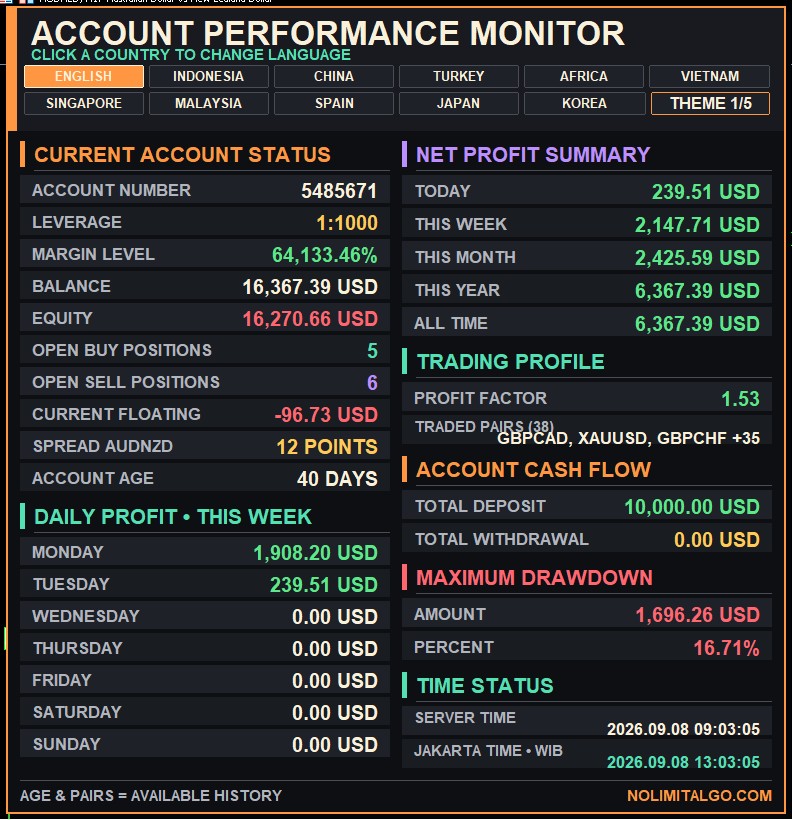
MONITOR ACCOUNT MT5 is a multilingual account-performance indicator designed for MetaTrader 5. It transforms complex trading data into a clear, modern, and easy-to-read dashboard displayed directly on the chart.
The indicator does not open, modify, or close trades. Its main purpose is to help traders monitor their accounts and make better-informed decisions.
Complete Account Information in One Dashboard
Instead of checking multiple MetaTrader 5 tabs, traders can view essential account information in one place, including:
- Account number
- Account leverage
- Margin level
- Balance
- Equity
- Current floating profit or loss
- Number of active BUY positions
- Number of active SELL positions
- Current symbol spread
- Estimated account age
This makes the indicator useful for both manual traders and users who operate Expert Advisors.
Detailed Profit Performance
MONITOR ACCOUNT MT5 provides a structured overview of account profitability across several periods.
The dashboard displays:
- Today’s net profit
- This week’s profit
- This month’s profit
- This year’s profit
- All-time profit
- Daily profit from Monday through Sunday
The daily breakdown helps traders identify which trading days have historically produced the strongest or weakest results. It can also help evaluate whether a particular trading strategy performs consistently throughout the week.
Account Cash-Flow Monitoring
Trading profit alone does not always show the true condition of an account. Deposits and withdrawals can significantly affect the balance.
For that reason, the dashboard separately displays:
- Total deposits
- Total withdrawals
This separation helps traders distinguish genuine trading performance from externally added or removed funds.
Maximum Drawdown Information
Risk control is one of the most important parts of trading. MONITOR ACCOUNT MT5 provides maximum drawdown information in two formats:
- Maximum drawdown amount in the account currency
- Maximum drawdown percentage
These values help traders evaluate how much account equity has declined from its historical peak.
Maximum drawdown information can be especially valuable when:
- Evaluating an Expert Advisor
- Monitoring a grid or averaging strategy
- Comparing different trading accounts
- Reviewing risk settings
- Managing investor or prop-trading accounts
The accuracy of historical calculations depends on the trading history available in MetaTrader 5.
Trading Profile Analysis
The indicator also displays useful trading-profile information, including:
- Profit Factor
- Number of traded pairs
- Summary of symbols previously traded
Profit Factor compares gross profit with gross loss. A value above 1.00 generally indicates that total historical profit is greater than total historical loss, while a value below 1.00 indicates the opposite.
The traded-pairs summary helps users quickly understand whether an account focuses on one market or trades multiple instruments.
Server Time and Jakarta Time
Different brokers may use different server time zones. This can create confusion when reviewing trading sessions, daily results, or Expert Advisor schedules.
MONITOR ACCOUNT MT5 displays:
- Broker server time
- Jakarta time in Western Indonesian Time (WIB)
This feature is particularly useful for Indonesian traders who need to compare broker time with their local time.
Multilingual Dashboard
The language can be changed directly from the chart without opening the indicator settings.
Available language selections include:
- English
- Indonesian
- Simplified Chinese
- Turkish
- Afrikaans
- Vietnamese
- English for Singapore
- Malay
- Spanish
- Japanese
- Korean
English is used as the default language for the first installation. The indicator can remember the selected language for easier future use.
Five Color Themes
Every trader has a different visual preference. The dashboard includes five selectable color themes:
- Obsidian Copper
- Arctic Blue
- Emerald Lime
- Ruby Sunset
- Violet Aurora
The active theme can be changed directly from the dashboard. The selected theme is saved, allowing the preferred appearance to remain active after the indicator or platform is restarted.
Responsive and Adaptive Design
The dashboard automatically adjusts to the available chart area. Its panel size, spacing, rows, buttons, and fonts scale according to the chart’s pixel dimensions.
This responsive design is intended to keep the information readable on:
- Compact notebook screens
- 10-inch and larger displays
- Standard 14-inch laptops
- Full HD desktop monitors
- Large trading workstations
Whenever the chart size changes, the dashboard automatically recalculates its layout. It remains positioned on the left side of the chart while preserving space for price analysis.
The language buttons use their own smaller font settings so that longer country names remain clear without reducing the size of the main account information.
Safe Monitoring Without Affecting Trades
MONITOR ACCOUNT MT5 is an analytical indicator, not an automated trading system.
It does not:
- Open market positions
- Place pending orders
- Change Stop Loss or Take Profit
- Close active positions
- Modify an Expert Advisor’s strategy
This allows traders to use the indicator alongside manual trading systems or Expert Advisors without intentionally interfering with their trading logic.
Who Can Use This Indicator?
MONITOR ACCOUNT MT5 can be useful for:
- Manual forex and gold traders
- Expert Advisor users
- Grid and averaging traders
- Scalpers and day traders
- Account managers
- Signal providers
- Trading educators
- Investors monitoring managed accounts
- Traders reviewing demo or live-account performance
It can also be used when taking screenshots or recording trading results because the dashboard presents important statistics in a professional format.
Key Advantages
The main advantages of MONITOR ACCOUNT MT5 include:
- Comprehensive account statistics in one location
- Clear separation between profit and cash flow
- Daily and periodic performance summaries
- Maximum drawdown monitoring
- Profit Factor calculation
- Traded-symbol history
- Eleven language selections
- Five selectable visual themes
- Responsive chart-based layout
- Large and readable fonts
- Automatic timer-based updates
- No trading-operation interference
Conclusion
MONITOR ACCOUNT MT5 provides traders with a practical way to understand their account performance without constantly switching between different MetaTrader 5 windows.
By combining account status, profit summaries, daily performance, cash flow, trading history, drawdown, and time information in one responsive dashboard, the indicator helps traders monitor both performance and risk more efficiently.
It is not a replacement for a complete trading journal or professional risk-management system. However, it is a valuable daily monitoring tool for traders who want faster access to important account information directly from their MetaTrader 5 chart.
MONITOR ACCOUNT MT5 — Clear information, better monitoring, and smarter account evaluation.
How to Install MONITOR ACCOUNT MT5
Follow these steps to install the MONITOR ACCOUNT MT5 indicator on MetaTrader 5.
1. Prepare the Indicator File
You only need the compiled indicator file:
MONITOR_ACCOUNT_MT5_v9_RESPONSIVE_MULTILANGUAGE.ex5
The .mq5 source file is optional and is not required for normal installation.
2. Open the MT5 Data Folder
Open MetaTrader 5, then:
- Click File in the top menu.
- Select Open Data Folder.
- Open the MQL5 folder.
- Open the Indicators folder.
The installation location should be:
MQL5\Indicators
3. Copy the Indicator
Copy:
MONITOR_ACCOUNT_MT5_v9_RESPONSIVE_MULTILANGUAGE.ex5
Paste it into the MetaTrader 5 Indicators folder.
Do not place the file inside the Experts folder because this product is an indicator, not an Expert Advisor.
4. Refresh the Navigator
Return to MetaTrader 5 and open the Navigator panel.
If the Navigator is not visible:
- Click View.
- Select Navigator.
- Alternatively, press
Ctrl+N.
Inside the Navigator:
- Find Indicators.
- Right-click Indicators.
- Select Refresh.
The indicator should now appear as:
MONITOR_ACCOUNT_MT5_v9_RESPONSIVE_MULTILANGUAGE
If it does not appear, restart MetaTrader 5.
5. Attach the Indicator to a Chart
To activate the indicator:
- Open any trading chart.
- Find the indicator in the Navigator.
- Drag it onto the chart.
- Review the input settings.
- Click OK.
You can also double-click the indicator’s name while the desired chart is active.
The account-performance dashboard will appear on the left side of the chart.