DIGITALMINE_EA FOR MT4 AND MT5 – DOWNLOAD
MT5
Buy NowMT4
Buy NowDIGITALMINE_EA
+2.25%Markets: GBPUSD, USDCHF, EURUSD, XAUUSD
Last Updated: Oct 19, 2026, 04:26 AM
DIGITALMINE_EA FOR MT4 AND MT5
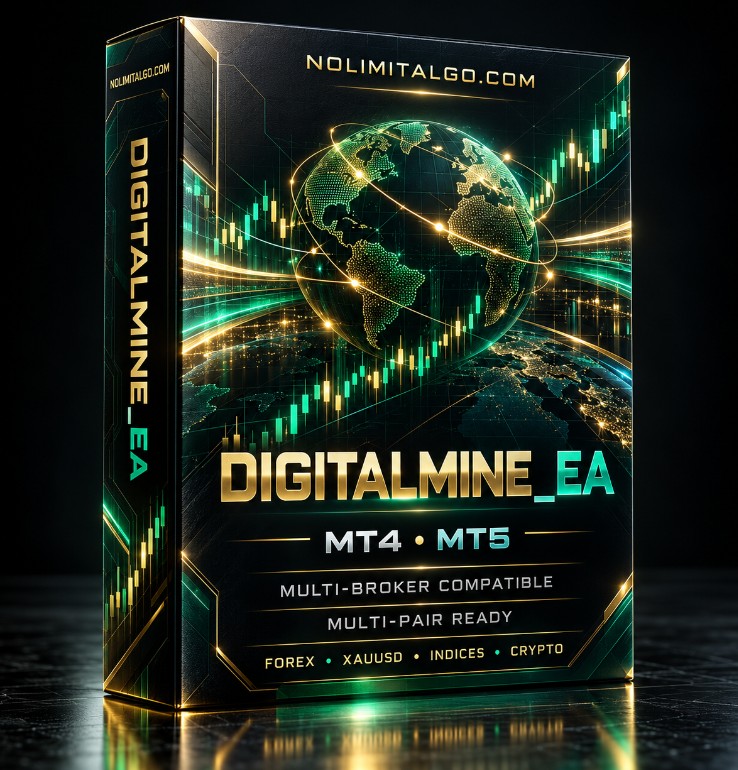
DIGITALMINE_EA is a multi-market Expert Advisor built for structured automated trading and position management. It uses several optimized signal engines to support Forex, XAUUSD, and other instruments that traders may wish to explore, including selected synthetic markets, indices, crypto, and stock CFDs.
The EA reads the active symbol’s broker specification, including price precision, point value, tick size, volume rules, spread, and trading limits. This helps it adapt its operational handling across markets with different quote formats and price ranges.
⚠️ IMPORTANT: The EA is provided in a ZIP file. After downloading, please EXTRACT the ZIP first to access the Master EA file.
INSTALLATION
Attach DIGITALMINE_EA only to a 1-minute (M1) chart. The EA is intentionally designed for M1 operation and will not run on other chart timeframes or in Strategy Tester mode.
For MT4, install DIGITALMINE_EA_v8_MT4.ex4 in the MQL4\Experts folder. For MT5, install DIGITALMINE_EA_v6_MT5.ex5 in the MQL5\Experts folder. Restart or refresh the Navigator, attach the correct version to an M1 chart, then enable live algorithmic trading.
RISK AND CAPITAL APPROACH
Every broker, symbol, spread condition, and account type can behave differently. Before using the EA on a larger account, test it first on a small live or cent account with at least 1,000 cent capital. Spend enough time observing execution, spread behaviour, position management, and your selected risk settings.
After you understand its behaviour and are comfortable with the risk, you may consider moving to a larger capital level, for example 10,000 USD. This is not a profit guarantee or a fixed capital requirement. It is a practical staged approach intended to help users learn the EA before increasing exposure.
LOT SIZE AND MONEY MANAGEMENT
Users may freely adjust the initial lot size and money-management settings to fit their own trading plan, account balance, broker conditions, and risk tolerance. Higher lots and aggressive money-management settings increase risk. Use conservative exposure while testing, especially on XAUUSD and other high-volatility instruments.
PROTECTION AND MANAGEMENT
DIGITALMINE_EA includes optional account-bound licensing, account protection, expiry protection, capital drawdown protection, broker-point stop loss, profit lock, spread filtering, margin checks, and position-management controls. Review all Inputs before enabling new entries. Existing managed positions continue to receive protective management when new entries are restricted.
CONFIDENTIALITY NOTICE
The underlying signal and position-management methods are proprietary NoLimitAlgo intellectual property. Their technical details are intentionally not disclosed in this article.
DIGITALMINE_EA
QUICK INSTALLATION GUIDE — MT4 & MT5
- Open MetaTrader 5 and select File > Open Data Folder.
- Open MQL5 > Experts.
- Copy the DIGITALMINE_EA MT5 .ex5 file into the Experts folder.
- Restart MetaTrader 5, or right-click Expert Advisors in the Navigator panel and select Refresh.
- Open the chart for the symbol you want to trade. M1 is recommended.
- Drag DIGITALMINE_EA MT5 from Navigator onto the chart.
- In the Common tab, enable Allow Algo Trading.
- In Inputs, paste your valid account-bound license key into InpLicenseKey.
- Click OK, then make sure the main Algo Trading button in MetaTrader 5 is enabled.
BEFORE TRADING
Check the DIGITALMINE_EA dashboard and confirm:
- LICENSE must show LICENSE READY.
- EA STATUS must not show an error or protection lock.
- Make sure your lot size, maximum positions, and protection settings match your account risk plan.
- Confirm that Algo Trading is enabled.
- Open MetaTrader 4 and select File > Open Data Folder.
- Open MQL4 > Experts.
- Copy the DIGITALMINE_EA MT4 .ex4 file into the Experts folder.
- Restart MetaTrader 4, or right-click Expert Advisors in the Navigator panel and select Refresh.
- Open the chart for the symbol you want to trade. M1 is recommended.
- Drag DIGITALMINE_EA MT4 from Navigator onto the chart.
- In the Common tab, enable Allow live trading.
- In Inputs, paste your valid account-bound license key into InpLicenseKey.
- Click OK, then make sure the main AutoTrading button in MetaTrader 4 is enabled.
BEFORE TRADING
Check the DIGITALMINE_EA dashboard and confirm:
- LICENSE must show LICENSE READY.
- EA STATUS must not show an error or protection lock.
- Make sure your lot size, maximum positions, and protection settings match your account risk plan.
- Confirm that AutoTrading is enabled.
- Use only one DIGITALMINE_EA instance per chart and symbol.
- Do not attach two different DIGITALMINE_EA versions to the same symbol at the same time.
- Always review your trading and risk settings carefully before enabling automated trading.
- Make sure your license is active and correctly linked to your trading account.
- Keep MetaTrader running and connected to the broker server for DIGITALMINE_EA to operate.
- A VPS is recommended if you want DIGITALMINE_EA to operate continuously 24/7.
Risk warning: Trading involves substantial risk. Automated trading does not guarantee profit, and past results do not guarantee future performance. Test carefully and trade only with capital you can afford to risk.